
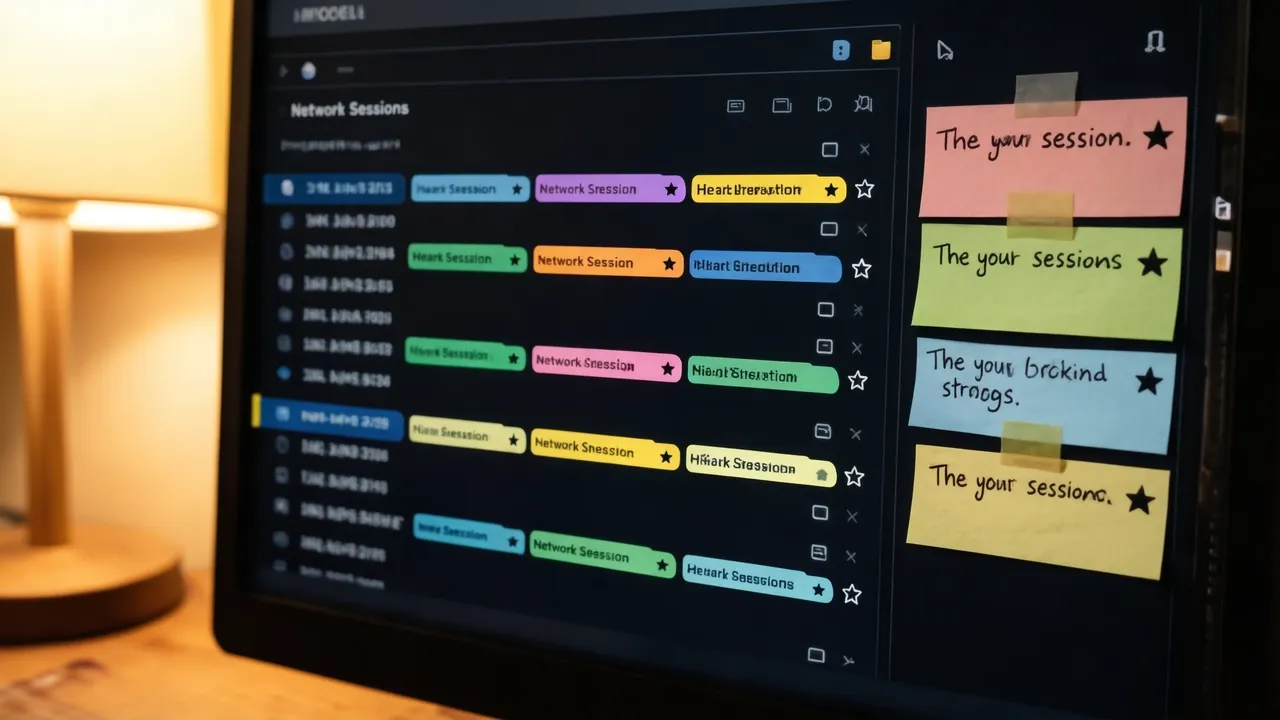
The Same IP, Again in the Third Sample
Forensic work rarely ends with a single capture. The usual rhythm is a colleague sending several pcaps exported from the same machines at different times, and you moving between them to piece together a timeline.
The friction is in re-remembering. On day one you noticed 198.51.100.77 making a suspicious connection to an unfamiliar domain in file A and mentally flagged it. On day two it resurfaces in file B. By the third sample you can't recall why you cared — the odd port, something in the payload, a related ticket? So you open it again and redo the analysis.
If you could, at the moment of the first judgment, attach a label and a sentence to that host — and have both travel with you into every capture you open afterward — those three days would save a lot of repeated work. PcapDecoder's favorites and notes are built for exactly that: a cross-file forensic tracking list, not a temporary mark scoped to the current capture. Here's the real workflow.
Star It: Add a Host to Your Tracking List
Step 1 — open a capture and switch to the Sessions view. The session list is sorted by packet count, one session per row, with both endpoints in the middle and the packet count on the right.
Step 2 — find the suspect session and look at the star at the end of the row. Each session row ends with a star button: hollow when unstarred, a solid orange star once added. It marks the connection's remote host — usually the external address worth watching, not your own internal machine. The selection logic prefers the remote end: if one side is a private address (10., 192.168., 127., 169.254., or the 172.16–31 range), it picks the other as the tracking target; if both are private, it takes one. So you don't have to decide which address to star — the app picks the forensically sensible one.
Step 3 — tap to add. The star turns solid and the host joins the tracking list. If it's already starred, another tap removes it — it's a toggle, not a one-way add.
At this point you've attached a label. What turns it into a real tracking list is the next step.
Write a Note: Keep the Reasoning
Tapping to star opens a dialog titled "Favorite host." It shows the host address and, below it, a text field labelled "Note (optional, e.g. suspected C2, ticket #123)."
Write down the judgment you want to keep. For example:
- "Suspected C2, ticket #123" — ties the analysis to a case;
- "Periodic outbound on 443, ~5-minute interval" — records the pattern you saw;
- "Client A backup server, false positive — ignore" — marks an already-cleared object.
The note is optional; you can star without writing one. But in forensics a sentence often matters more than the star itself — the star says "this matters," the note says why. Come back three days later and the note reconstructs your thinking without redoing the analysis.
Notes can be added and revised later. Revisit a starred host to update its note; change it when your assessment changes, remove the star when the case closes. The whole list is stored as a host-address → note mapping, one record per object and one sentence per record — simple and direct.
A word on scale: favorites suit "tens to a few hundred" priority objects, which is more than enough for forensic work. If you need to track tens of thousands of addresses, that's not a job for favorites — use the threat-list import instead (see the blocklist-import article). The two tools have different roles: favorites for the handful of objects you judged by hand, lists for bulk-imported intel.
Cross-File by Design: One Filter for Every Capture
The crucial property of favorites and notes is that they persist across files.
They're stored in the app's local settings, not bound to any one capture. A star and note you added in file A are still there in files B and C, and still there after you close and reopen the app. That's fundamentally different from favorites scoped to a single monitoring session, which reset the moment the file closes and force you to start over the next day. Here the list is a "suspect ledger" you maintain over time.
Open any capture and tap the Favorites Only filter. In the Sessions view there's a Favorites Only chip. Turn it on and the session list shows only connections whose remote host is on your tracking list — regardless of whether you've opened this capture before. A count beside the toggle tells you how many hosts are currently saved.
This is the biggest time-saver in multi-file analysis. Back to the opening scenario: three days, three samples. On day one you starred 198.51.100.77 and noted it; on days two and three, open the new file and tap Favorites Only, and that object appears alongside your note. You instantly know "that's the suspected C2 from yesterday, ticket #123" and continue from there instead of re-establishing the context.
An empty result is explained. If the current capture contains none of your starred hosts, the view shows an empty state with a "Show all" action that returns you to the full session list — you never get stuck in the filtered view. Small as it sounds, that matters in practice: an empty result and a stuck toggle are different things, and you should be able to tell at a glance.
Maintaining the List, and Its Limits
Prune regularly to keep the list trustworthy. Its value lies in every entry having been judged at some point. When a case closes or a host is cleared, remove the star or update the note. Keeping it at a few dozen high-quality entries beats hoarding hundreds of stale marks no one revisits.
A good note is conclusion + basis + source. It should answer three questions on its own: what it is (conclusion), why you think so (basis), and which case it belongs to (ticket). Writing only "suspicious" sends you right back to wondering why.
A favorite organizes leads; it isn't a threat verdict. Starring doesn't change the app's security conclusion about a capture — it just gathers the objects you want to watch so you can filter them out and review them together. The real verdict still comes from payload, timing, and the threat cards. Don't treat "I starred it" as proof that it's malicious.
The unit is a host, not a single connection. Favorites target the remote host (IP or domain), not one specific session. That's deliberate: in forensics you track an adversary or a machine, not one packet on one day. So multiple connections from the same host across different files and ports are all surfaced together by Favorites Only.
Back to the opening: star the recurring suspects, write a sentence about each, then tap Favorites Only on every new capture — scattered snap judgments become a tracking list you can reuse indefinitely. Over three days, what you save isn't just a few clicks; it's the mental work of rebuilding context again and again.